Blog · Data Recovery · October 26, 2026
Hard Drive or SSD Failing? Warning Signs, What to Do First, and a Backup Plan That Works
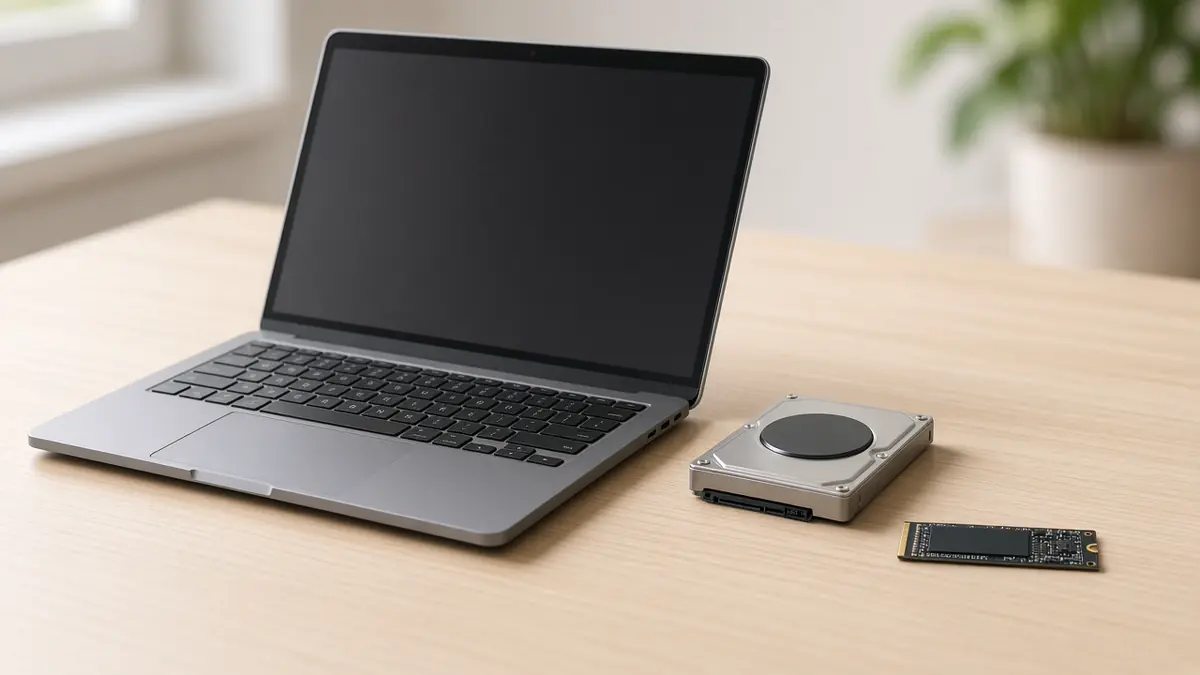
A computer that takes minutes to open a folder. A drive making a clicking sound it never made before. Files that were there yesterday and aren't today. Any of these can mean a hard drive or SSD is on its way out, and what you do first matters most. Here's a calm plan.
Warning signs worth taking seriously
- New noises from a hard drive. Clicking, grinding, buzzing or repeated spin-up sounds from a spinning hard drive are a mechanical warning. SSDs have no moving parts, so they tend to fail quietly.
- Freezes when opening or saving files. Especially if the whole computer hangs for several seconds and then catches up.
- Files that won't open or come back damaged. Photos that load half gray, documents that say they are corrupted.
- Boot trouble. The computer sticks on the logo, says no boot device was found, or keeps trying to repair itself.
- A warning from the system. Windows 11 can show a critical warning that a storage device may be at risk. Microsoft's advice for that warning is simple: back up your data.
- The drive disappears. An external drive stops showing up, or shows up and asks to be formatted.
What to do first
- Stop using it for anything except saving your files. Every hour a failing drive runs puts more wear on parts that may already be damaged. Skip the cleanup tools, games and big updates.
- Copy the files you can't replace, most important first. Plug in a separate external drive, or use a cloud service you already have, and copy family photos, tax and work documents, and anything else that only lives on this computer. Start small. One folder that finishes is better than a giant copy job that crashes halfway.
- If it's clicking or grinding, turn it off. A hard drive making mechanical noises can hurt itself more every time it spins up. At that point, copying at home is a gamble, and powering down is usually the safer call.
What not to do
- Don't format or initialize the drive, even if Windows or macOS offers to. That can make files much harder to get back.
- Don't run repair tools over and over on a drive that is physically failing. They are made for healthy drives with software problems, they write to the drive, and they put a lot of work on hardware that is already struggling.
- Don't open it up. The inside of a hard drive is extremely sensitive to dust and fingerprints. Tapping it or putting it in the freezer is not a plan.
How to check drive health
On Windows 11, go to Settings, then System, then Storage, then Advanced storage settings, then Disks & volumes, and open Properties for the drive. Microsoft lists warnings such as "Reliability is degraded" and "Drive is set to read-only," along with estimated remaining life and temperature. One catch: Microsoft says this health monitoring only covers NVMe SSDs, not SATA SSDs or spinning hard drives, so no warning there doesn't always mean the drive is fine.
On a Mac, Disk Utility has a First Aid check that can find and repair some disk errors. It's fine for a drive that is working normally. If the drive is making noise or the Mac is freezing constantly, copy your files first and check second.
If a health check says something is wrong, believe it. If it says all is fine but the computer keeps freezing, the symptoms still count.
Honest odds on getting files back
Sometimes a failing drive still reads well enough to copy everything off, and the job is moving your files to a new drive. Sometimes it reads only in pieces, and recovery takes patience and the right tools. And sometimes the damage is physical enough that the data can't be recovered at all, or only by a specialist lab with clean-room equipment at a much higher cost. Nobody can promise recovery before looking at the drive, and you should be careful with anyone who does.
The backup plan that works: 3-2-1
CISA, the federal cybersecurity agency, describes a simple rule for anything you care about:
- 3 copies of every important file: the original plus two backups.
- 2 different types of storage, so one kind of failure can't take out everything.
- 1 copy kept offsite, away from your home or office.
For most households that looks like this: the files on your computer, a copy on an external drive at home, and a copy in a cloud service. The cloud copy covers fire, theft and a drive that dies along with the computer.
Two habits make it stick. Turn on automatic backups (File History or a cloud sync on Windows, Time Machine on a Mac) so nobody has to remember. And every few months, open a few files from the backup to make sure it actually works. A backup you have never tested is a guess.
Where we come in
We can look at the drive, tell you plainly what we think is going on, and give you a free estimate before any work starts. If the files can be copied, we can move them to a new drive and get the computer running again. If the drive needs a lab, we'll tell you that straight instead of making things worse.
Want us to take a look?
Tech Station is an appointment-only repair shop at 6 Northway Lane, Latham, NY 12110. We work on phones, consoles, computers, tablets and plenty of other electronics, so if your device isn't mentioned here, ask anyway. Pick whichever of these is easiest for you:
- Book online: choose a time that works for you on our online booking calendar.
- Call us: 518-900-1663 if you'd rather talk it through first.
- Text us: send a quick description (and a photo if you can) to 518-900-1663.
Estimates are free. If a diagnostic is needed, it runs $40 to $100, and we explain it and get your okay before we start. Repairs come with a 30-day warranty, and we offer free pickup and delivery within 5 miles of the shop. We can't promise every device can be fixed, but we'll always tell you what we find.