
Blog · Repair Guides · November 20, 2026
Back Up Your iPhone or Android in 10 Minutes Before Any Repair
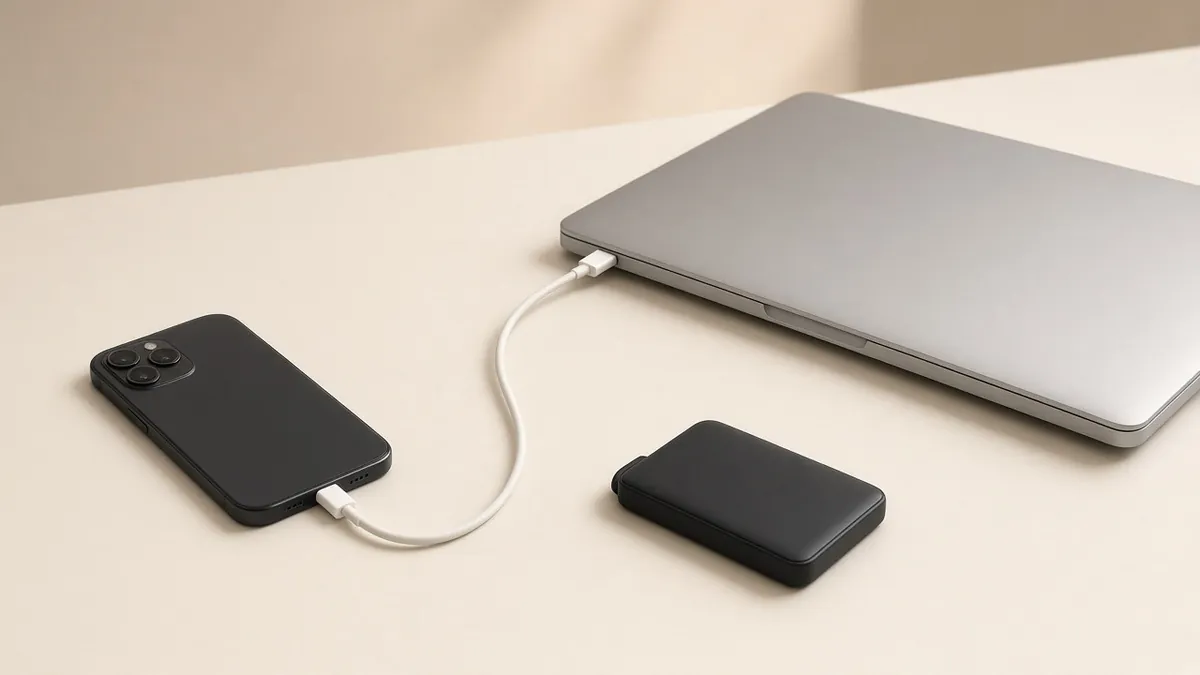
Most phone repairs don't touch your data. A screen, a battery or a charging port gets swapped and everything is right where you left it. But "most" isn't "all." A phone can fail during a repair that it was already close to failing on its own, and some fixes need a reset. A fresh backup turns a disaster into an inconvenience. It takes about 10 minutes of your attention, plus some waiting.
Before you start: two quick things
- Plug in and join Wi-Fi. Backups are big. Use home Wi-Fi and a charger.
- Know your passwords. Make sure you know your phone passcode and your Apple Account or Google Account password. You'll need them to restore, and losing access to the account can mean losing access to the backup.
iPhone: back up to iCloud
- Open Settings and tap your name.
- Tap iCloud, then iCloud Backup.
- Tap Back Up Now and stay on Wi-Fi until it finishes.
When it's done, Apple shows the date and time of your last backup right under Back Up Now. If it says you're out of iCloud storage, you can buy more or use a computer instead.
One thing people miss: Apple says an iCloud backup doesn't include things that already sync to iCloud, like photos when iCloud Photos is turned on. Those live in iCloud separately. That's fine, as long as you know your photos are actually syncing. Open Photos and check that the most recent ones are uploaded.
iPhone: back up to a computer
If you have a Mac or a Windows PC with space, a computer backup is a good second copy.
- Mac: connect the iPhone with a cable, open Finder, and select the phone in the sidebar. Tap Trust on the phone if asked. Then click Back Up Now.
- Windows: use Apple's Apple Devices app, select the phone, and choose to back up all the data to this computer.
Apple suggests turning on "Encrypt local backup" if you want Health and Activity data saved too. Write that password down somewhere safe. Apple is clear that you can't recover the backup without it.
Android: back up to your Google Account
- Open Settings and tap Google, then All services.
- Under Backup and restore, tap Backup.
- Tap Back up now.
Google says a backup can take up to 24 hours, and that not every app backs up all of its data. Google gives 15 GB of free storage per account. Menu names can vary a little by phone maker and Android version.
For photos and videos, open Google Photos and make sure backup is on and finished. Google Photos handles those separately from the device backup.
Samsung Galaxy: two extra options
Samsung phones can use the Google backup above, and Samsung adds two more:
- Samsung Cloud: in Settings, tap your Samsung account name, then Samsung Cloud, then Back up data.
- Smart Switch on a PC or Mac: install Smart Switch on the computer, connect the phone with a cable, allow access on the phone, and click Backup. This keeps a full copy on your own computer.
Don't forget the apps that keep their own data
Some important things don't live in a normal backup:
- Chat apps like WhatsApp have their own backup setting inside the app. Run it.
- Two-factor login apps (the six-digit codes you use to log in) may not move over by themselves. Check the app's own export or sync option, or make sure you have your recovery codes.
- Anything only on a memory card or downloaded to the phone is worth copying to a computer.
Check that it actually worked
A backup you never checked is a hope, not a backup. Before you hand over the phone:
- Look at the date and time of the last backup. It should be today.
- Open your photos on another device or the web and spot-check a recent one.
- Confirm you can sign in to your Apple or Google account from another device.
What if the phone won't turn on, or the screen is black?
Then you can't run a backup, and that's okay. Tell us when you book. It changes what we try first, and we'll talk it through with you before any work starts. You may already have more backed up than you think, so check your iCloud or Google account from a computer to see the date of your last automatic backup.
After the repair
When you get the phone back, open your main apps, check your photos, and make a call and a text. If anything looks off, tell us right away.
When the backup is done and you are ready to book, see phone repair in Latham.
Want us to take a look?
Tech Station is an appointment-only repair shop at 6 Northway Lane, Latham, NY 12110. We work on phones, consoles, computers, tablets and plenty of other electronics, so if your device isn't mentioned here, ask anyway. Pick whichever of these is easiest for you:
- Book online: choose a time that works for you on our online booking calendar.
- Call us: 518-900-1663 if you'd rather talk it through first.
- Text us: send a quick description (and a photo if you can) to 518-900-1663.
You get free diagnostics and a free estimate. We tell you what we find and what it will cost, and nothing gets done without your okay. Repairs come with a 30-day warranty, and we offer free pickup and delivery within 5 miles of the shop. We can't promise every device can be fixed, but we'll always tell you what we find.