Blog · Gaming Consoles · November 25, 2026
Nintendo Switch Won't Charge or Won't Show on the TV: Step by Step
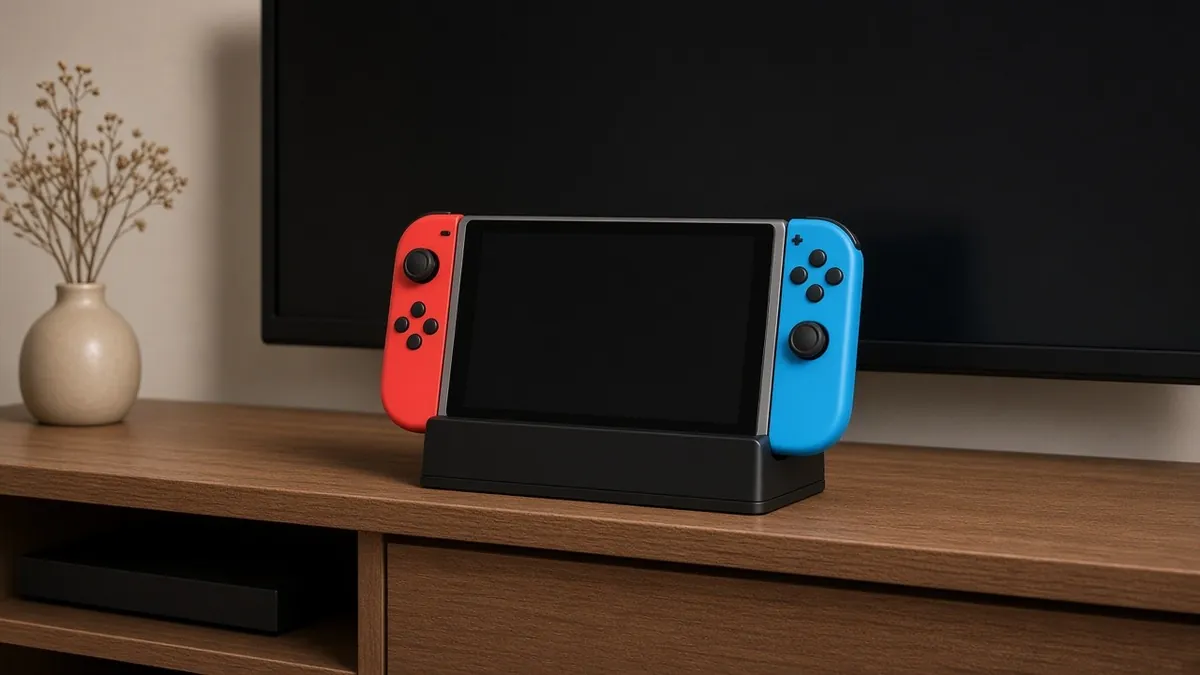
Two Nintendo Switch problems come up more than any others: the console won't charge, or it works in your hands but the TV shows nothing when you dock it. They're related, because the dock gets its power from the same adapter. Here are Nintendo's own troubleshooting steps in plain order, plus the signs that it's something a repair has to fix.
These steps follow Nintendo's guidance for the original Switch, the Switch OLED and the Switch Lite. If you have a Switch 2, Nintendo has separate support pages for it.
Part 1: The Switch won't charge
Take the console out of the dock for these steps.
- Reset the adapter. Unplug the AC adapter from the wall and from the console. Leave it unplugged for 30 seconds.
- Force the console off. Hold the POWER button for 20 seconds, then let go.
- Plug straight in. Plug the adapter directly into a wall outlet (no power strip), then into the console. Try a different outlet if you can.
- Press POWER once. You should see a battery charging icon.
Here's one that fools people: Nintendo says if the battery is nearly empty, the screen can stay off and only show a small charging icon in the top-left corner for a moment. If that's what you see, leave it charging for at least 30 minutes before trying to turn it on.
Still not charging? Narrow it down
- Check the adapter model. Nintendo's adapter for the Switch says MOD. HAC-002 on the bottom. Nintendo notes that unlicensed adapters aren't put through its testing and may have compatibility problems. A random phone charger may not be enough.
- Test the adapter on something else. Nintendo suggests plugging it into another Nintendo USB-C device, like a Pro Controller or the dock. If that works, the adapter is probably fine and the console is the problem.
- Check for damage. Look along the adapter cord for fraying, kinks or a loose plug.
- Look at the console's port. Shine a light into the USB-C port on the bottom. Nintendo says bent metal inside means the console needs service. Lint can also keep the plug from seating.
Part 2: No picture on the TV
First, take the console out of the dock and make sure it works in handheld mode. If it doesn't, go back to Part 1. If it does, while it's still undocked, check for a system update in System Settings, then System. Then:
- Power everything down. Turn off the TV, unplug all cables from the dock, and leave the adapter unplugged for 30 seconds.
- Use the right adapter. Nintendo's steps use the official adapter (HAC-002) and dock. A different adapter is a common cause, and a message saying it could not connect to the TV and to use the supplied adapter points right at it.
- Connect it simply. Plug the adapter into the dock and directly into the wall. Run the HDMI cable from the dock directly to the TV. Nintendo says to temporarily remove anything in between, like a soundbar, receiver or video adapter.
- Turn on the TV, then dock the Switch. The screen should face the same way as the front of the dock. Take off any case first, since it can stop the console seating properly.
- Pick the right input on the TV.
Still nothing on the TV?
- Try a different HDMI port on the TV, and a different HDMI cable.
- Lower the TV resolution setting on the Switch.
- If you have a dock with a LAN port, update the dock's firmware.
- Try a different TV, or a friend's dock. Nintendo says if the console works on another dock, the problem is the original dock.
Note that the Switch Lite doesn't connect to a TV at all. That's by design, not a fault.
Signs it's the console, not the accessories
- A known good official adapter charges other devices but not the console.
- It only charges when the plug is held at an angle.
- The port is loose, bent or has something stuck in it.
- It works on the TV with one dock, sometimes, or cuts out when bumped.
- It got hot, wet or dropped right before the problem started.
Those usually point to the USB-C port or the charging and video circuits on the board. That's soldering work. If your Switch is still under Nintendo's warranty, start with Nintendo's service request. If it isn't, a local repair is usually quicker than shipping it off.
Switch charging and dock picture faults are part of game console repair in Albany and Latham.
Want us to take a look?
Tech Station is an appointment-only repair shop at 6 Northway Lane, Latham, NY 12110. We work on phones, consoles, computers, tablets and plenty of other electronics, so if your device isn't mentioned here, ask anyway. Pick whichever of these is easiest for you:
- Book online: choose a time that works for you on our online booking calendar.
- Call us: 518-900-1663 if you'd rather talk it through first.
- Text us: send a quick description (and a photo if you can) to 518-900-1663.
You get free diagnostics and a free estimate. We tell you what we find and what it will cost, and nothing gets done without your okay. Repairs come with a 30-day warranty, and we offer free pickup and delivery within 5 miles of the shop. We can't promise every device can be fixed, but we'll always tell you what we find.