
Blog · Tech Safety Tips · November 22, 2026
Buying a Used Phone or Laptop? Eight Checks Before You Pay
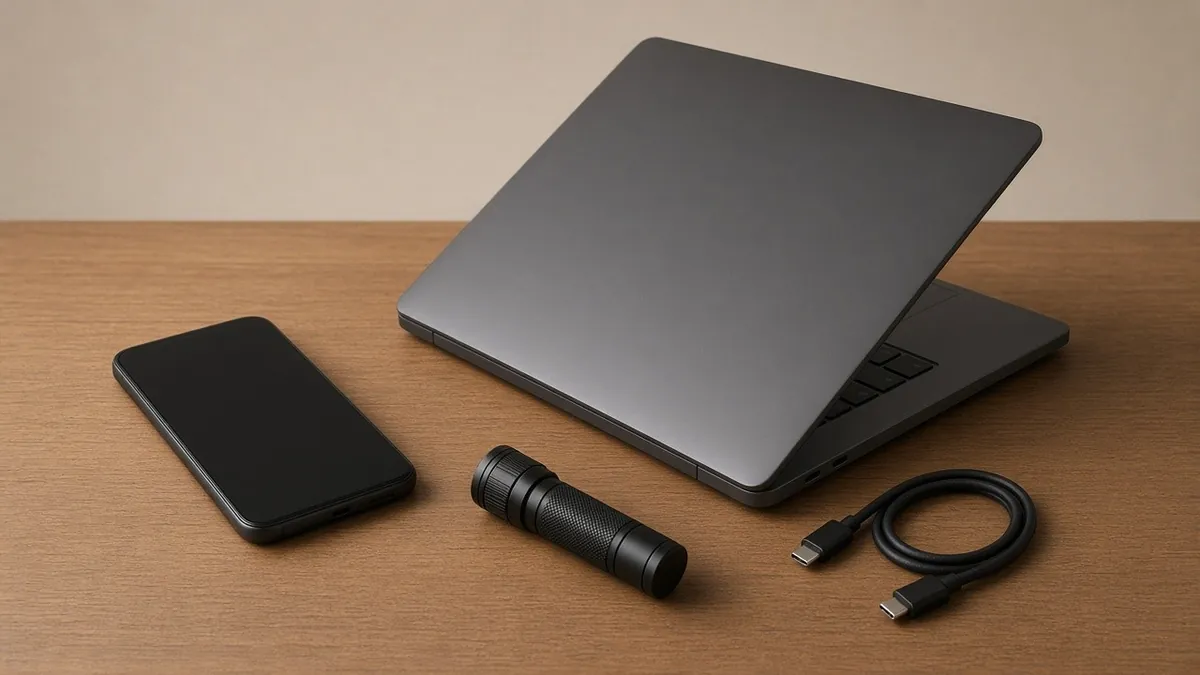
A used phone or laptop can be a smart buy, especially around the holidays. It can also be a locked brick, a stolen device, or a battery on its last legs. Most of the bad outcomes can be caught in a few minutes before money changes hands. Here are eight checks, in the order we'd do them.
1. Make sure it isn't locked to the last owner
This is the big one. A locked phone can't be set up by you, no matter how good it looks.
- iPhone or iPad: Apple's Activation Lock ties the device to the owner's Apple Account. Apple says if you see an "iPhone Locked to Owner" screen, don't buy it. If the phone opens to the passcode screen or home screen, it hasn't been erased. Ask the seller to sign out of their account and erase it in front of you. Apple says the device is ready for a new owner when you see the Hello screen, and that if setup asks for the previous owner's Apple Account, it's still linked to them.
- Android: Google's protection works the same way. After a reset, a protected phone asks for a Google Account that was on it before. Google says if you can't provide that, you won't be able to use the phone at all. Have the seller remove their Google Account and reset the phone while you watch, then start setup and make sure it doesn't ask for their account.
- Mac: Apple says newer Macs (with Apple silicon or the T2 chip) can have Activation Lock too. Make sure the seller signs out of their Apple Account and erases it.
Be wary of any seller who says "I'll remove it later" or offers a bypass. Walk away.
2. Check the IMEI against the stolen list
Every phone has an IMEI number. Dial *#06# or look in Settings under About. Then enter it at the CTIA Stolen Phone Checker (stolenphonechecker.org), a free public service. A red result means it has been reported lost or stolen. Green means it hasn't been reported. It's a good filter, but not a promise that the phone is clean, so do the other checks too.
3. Check that it works on your carrier
A phone can be locked to one carrier. Ask the seller, and if possible, pop in your own SIM to make sure it gets signal and can make a call.
4. Look at battery health
On an iPhone, go to Settings, then Battery, then Battery Health. On many Android phones, battery information is under Settings, then Battery or About phone. A low number isn't a deal breaker, but a battery replacement should be part of the price you agree on. On a laptop, ask how long it lasts unplugged, and watch the battery percentage while you test it.
5. Test the screen
Open a plain white page and a dark one. Look for lines, dead spots, yellow patches or flicker. Drag an app icon across the whole screen to check for touch dead zones.
6. Test every port and button
Bring a charging cable. Plug it in and make sure it charges without wiggling. On a laptop, try each USB port and the headphone jack. Press every button. On a phone, test both cameras, the speaker, the microphone (record a quick voice memo) and Face ID or the fingerprint sensor.
7. Look for signs it's been opened or wet
Missing or chewed screws, a screen that sits slightly raised, or fogging under the camera glass can mean a past repair or water damage. A repaired phone isn't always a bad buy, but you should know what you're paying for.
8. Meet somewhere safe, and pay safely
- Meet in daylight in a busy, public place. Some police departments set aside a spot for online sale exchanges, so it's worth calling your local department's non-emergency line to ask.
- Bring someone with you, or tell a friend where you'll be.
- Do all of the checks above before you pay, not after.
- Avoid paying ahead of time, by gift card, or by wire transfer. If the seller pushes you to rush or move somewhere private, walk away.
Already bought one and something's wrong?
Contact the seller first, and use any return or buyer protection on the site you used. If the problem is a battery, screen, port or another hardware fault, we can take a look and give you a straight answer on whether it's worth fixing. We can't remove Activation Lock or a Google lock, and nobody legitimate can do that without the original owner. Only they or the maker can.
If the battery, screen or port needs work after you buy, see phone repair in Latham.
Want us to take a look?
Tech Station is an appointment-only repair shop at 6 Northway Lane, Latham, NY 12110. We work on phones, consoles, computers, tablets and plenty of other electronics, so if your device isn't mentioned here, ask anyway. Pick whichever of these is easiest for you:
- Book online: choose a time that works for you on our online booking calendar.
- Call us: 518-900-1663 if you'd rather talk it through first.
- Text us: send a quick description (and a photo if you can) to 518-900-1663.
You get free diagnostics and a free estimate. We tell you what we find and what it will cost, and nothing gets done without your okay. Repairs come with a 30-day warranty, and we offer free pickup and delivery within 5 miles of the shop. We can't promise every device can be fixed, but we'll always tell you what we find.