
Blog · Repair Guides · November 23, 2026
Laptop Plugged In but Not Charging? Six Checks Before You Buy a New Charger
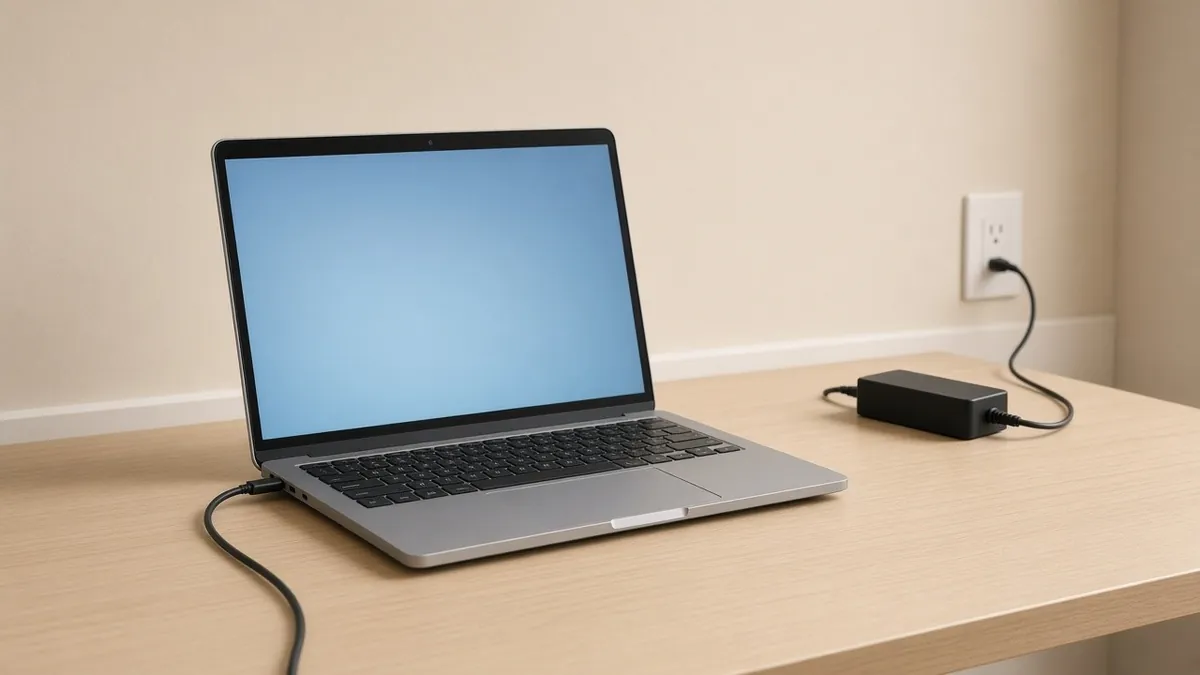
The laptop is plugged in. The light on the charger is on. And the battery icon says "plugged in, not charging," or the percentage just keeps dropping. Before you spend money on a new charger, work through these six checks. They go cheapest and easiest first, and the first few fix more cases than you'd expect.
Check 1: The outlet and anything in between
Apple suggests making sure the outlet works by plugging in something else, like a lamp. Then plug the charger straight into the wall. A power strip, extension cord or surge protector can be the weak link, and Dell suggests plugging directly into a wall outlet too.
Apple also mentions an odd one: some chargers shut themselves off when they sense electrical noise on the circuit, from things like refrigerators or certain lights on the same line. If it charges in one room but not another, that may be why.
Check 2: The charger and its wattage
Look at the label on the charger. It lists the output wattage. If it's a phone charger or a smaller laptop charger than your laptop came with, that may be the whole story. Apple explains that a lower-wattage adapter can keep a Mac running but not charge the battery, and that heavy work like games or video editing can use more power than the adapter supplies. Dell says much the same for Windows laptops: an incompatible charger or heavy use can get in the way of charging.
While you're there, check the whole cable and the brick for damage. Dell says to replace a charger with frayed cable or bent pins, and to stop using one that buzzes.
Check 3: The cable, especially USB-C
On USB-C laptops, the cable matters. Apple notes that some USB-C cables only support data and won't charge a laptop at all. Try the cable that came with the laptop, or another one you know charges a laptop.
And here's a key clue: Apple says if it only charges when you wiggle or move the cable, stop using that cable and get it checked. Dell adds that not every USB-C port on a laptop supports charging, so try another port if you have one.
Check 4: The charging port
Shine a flashlight into the laptop's charging port. Lint and dust build up, especially in bags. Both Apple and Dell suggest gently blowing debris out with compressed air.
Then plug in and feel how it sits. A plug that's loose, sits at an angle, or only works when pressed one way points to a worn or damaged port.
Check 5: Settings, updates and a reset
Sometimes the laptop is choosing not to charge.
- Mac: Apple says "Not Charging" or "Charging On Hold" can mean the Mac paused charging to extend the battery's life. Optimized Battery Charging, or a charge limit on newer macOS versions, can hold it below full on purpose. That's normal.
- Windows: some laptop makers include battery care settings that can stop charging before the battery is full. If your laptop has a power or battery app from its maker, check its settings.
- Updates: Dell notes that out-of-date BIOS and drivers can cause charging problems, and Apple suggests checking for software updates.
- Battery driver: on Windows, Dell suggests opening Device Manager, expanding Batteries, uninstalling "Microsoft ACPI-Compliant Control Method Battery," and restarting so Windows reinstalls it.
- Hard reset: shut down, unplug, disconnect anything attached, and hold the power button for 15 to 20 seconds (Dell's steps). On an Intel Mac, Apple suggests resetting the SMC.
Check 6: The battery itself
Batteries wear out. On a Mac, Battery settings shows battery condition. On Windows, you can create a battery report, and many makers have their own battery test. An old battery may charge slowly, stop early, or drop from 40 percent to zero in minutes.
Stop right away if the trackpad is lifting, the case is bulging, or the bottom won't sit flat. That can be a swollen battery. Unplug it, don't keep charging it, and see our earlier post on swollen batteries.
When it's the port or the board
If you've tried a known good charger and cable, the outlet is fine, the settings aren't holding it back, and it still won't charge, the problem is usually inside: a worn or broken charging port, a damaged power jack, or a fault in the charging circuit on the board. Common signs:
- It only charges at a certain angle.
- The plug feels loose or wobbly.
- It charges on one port but not another that should work.
- Nothing happens with any charger.
That's repair work, not a charger problem. We replace laptop charging ports and power jacks and trace board-level charging faults, and we'll tell you honestly if a repair isn't worth it for your laptop.
Port, jack and board-level charging work is on laptop charging port and battery repair.
Want us to take a look?
Tech Station is an appointment-only repair shop at 6 Northway Lane, Latham, NY 12110. We work on phones, consoles, computers, tablets and plenty of other electronics, so if your device isn't mentioned here, ask anyway. Pick whichever of these is easiest for you:
- Book online: choose a time that works for you on our online booking calendar.
- Call us: 518-900-1663 if you'd rather talk it through first.
- Text us: send a quick description (and a photo if you can) to 518-900-1663.
You get free diagnostics and a free estimate. We tell you what we find and what it will cost, and nothing gets done without your okay. Repairs come with a 30-day warranty, and we offer free pickup and delivery within 5 miles of the shop. We can't promise every device can be fixed, but we'll always tell you what we find.