
Blog · Gaming Consoles · November 21, 2026
Steam Deck Problems: Drift, Charging, SD Cards and When to Get Help
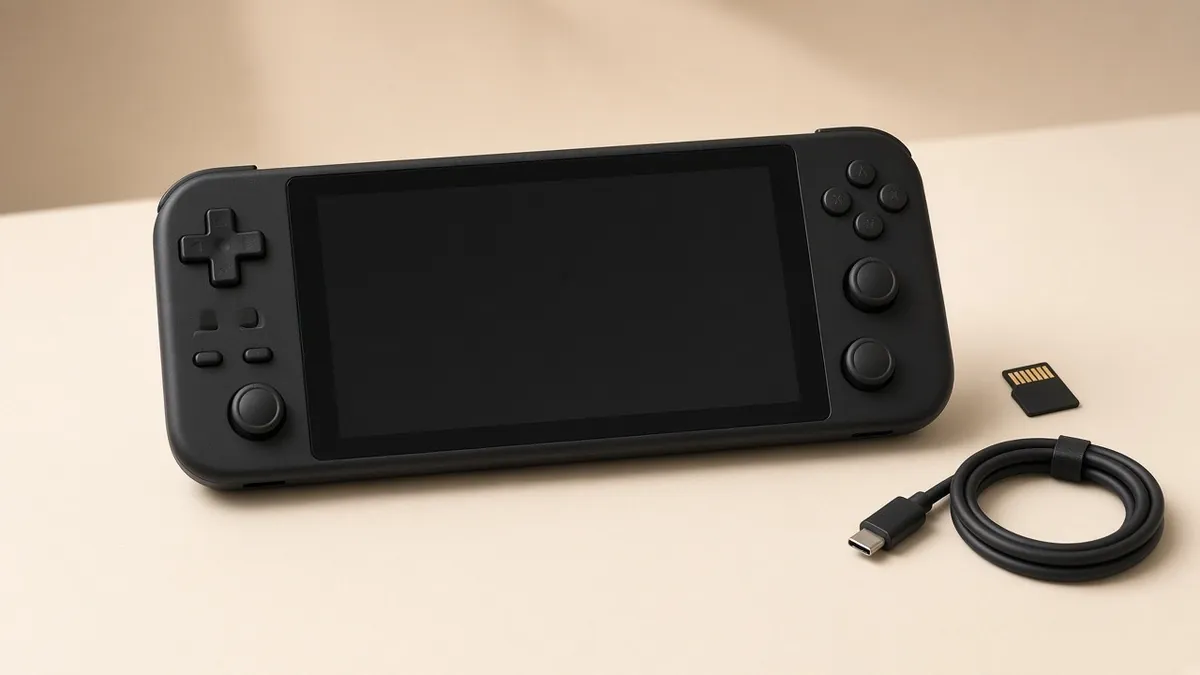
The Steam Deck is a small PC in a controller's body, which means it can have PC problems and controller problems at the same time. The good news is that a lot of Steam Deck trouble can be sorted out at home in a few minutes. Here are the common ones, the free checks for each, and the signs that it needs a repair.
Before anything else: update and restart
Press the Steam button, go to Settings, then System, and install any SteamOS update. Then do a full restart, not just sleep. Some odd behavior, from controls to charging, can come from a software bug that an update or restart clears up.
Stick drift
If your view slowly turns or your character walks on its own, a thumbstick is drifting. Try this first:
- Go to Settings, then Controller, then Calibration and Advanced Settings, then Joysticks.
- Test the stick and watch where it sits when you're not touching it.
- Run the calibration, and if needed, nudge the deadzone up a little.
Be honest about what this does. A bigger deadzone hides small drift by ignoring small movements. It doesn't fix a worn stick, and worn sticks usually get worse. We covered why sticks wear out, and what a real fix looks like, in our post on controller stick drift. On a Steam Deck, the sticks are separate modules that can be replaced. See controller repair and TMR upgrades.
Not charging, or charging very slowly
Work through these in order:
- Use the right charger. The charger that comes with the Deck is 45 watts. A small phone charger may not keep up, especially while you're playing, and the Deck may show a slow charging warning.
- Test the charger and the outlet. Try the Deck's charger on another USB-C device, or try a different good charger on the Deck. Check that the outlet works.
- Look for the light. There's a small light next to the charging port. If it never comes on with a known good charger, that's a useful clue to tell us.
- Look in the port. Shine a flashlight into the USB-C port on top. If the plug sits crooked or loose, lint or debris may be in the way. Blow it out gently. Nothing metal.
- Try Battery Storage Mode. Power the Deck off. Hold Volume Up and press Power to open the BIOS menu, go to Power, and choose Battery storage mode. The Deck shuts down and won't respond to the power button. Plug the charger in to wake it, then power on. This can reset the charging circuit.
If it still won't charge, the port or the board may be the problem. The USB-C port on a Steam Deck is soldered to the main board, not a plug-in part, so replacing it is careful soldering work, not a quick swap.
microSD card not showing up
- Pop the card out, check it's the right way up, and push it in until it clicks.
- Restart the Deck.
- Check Settings, then Storage, to see if the card appears there.
Valve says the Steam Deck uses its own format for microSD cards (ext4) and formats cards itself. That means a card set up on a Windows PC or a camera may need to be formatted on the Deck before it works. Formatting erases the card, so if it holds anything you care about, copy it off on a computer first.
If the card works in a computer but no card works in the Deck, the card reader itself may be damaged.
Other things we see on handhelds
- Cracked or unresponsive screen after a drop.
- Buttons or triggers that stick or stop registering.
- Loud fan or overheating, often from dust.
- Won't turn on at all. Charge it for a while with the official charger, then try again. If there's still nothing, it needs a proper look.
What not to do
- Don't open it up with the battery active. Valve recommends Battery Storage Mode before any internal repair.
- Don't use a knife or metal pick to pry the shell or clean the port.
- Don't keep charging a Deck that gets very hot, smells odd, or has a bulging back. Stop and get it checked.
Warranty first, if you have it
If your Deck is still under Valve's warranty, check with Steam Support first. If it's out of warranty, or you'd rather not ship it and wait, a local repair is an option. Valve works with iFixit on official replacement parts, so good parts are available for common fixes.
Steam Deck charging, sticks and other handheld faults are part of game console repair in Albany and Latham.
Want us to take a look?
Tech Station is an appointment-only repair shop at 6 Northway Lane, Latham, NY 12110. We work on phones, consoles, computers, tablets and plenty of other electronics, so if your device isn't mentioned here, ask anyway. Pick whichever of these is easiest for you:
- Book online: choose a time that works for you on our online booking calendar.
- Call us: 518-900-1663 if you'd rather talk it through first.
- Text us: send a quick description (and a photo if you can) to 518-900-1663.
You get free diagnostics and a free estimate. We tell you what we find and what it will cost, and nothing gets done without your okay. Repairs come with a 30-day warranty, and we offer free pickup and delivery within 5 miles of the shop. We can't promise every device can be fixed, but we'll always tell you what we find.